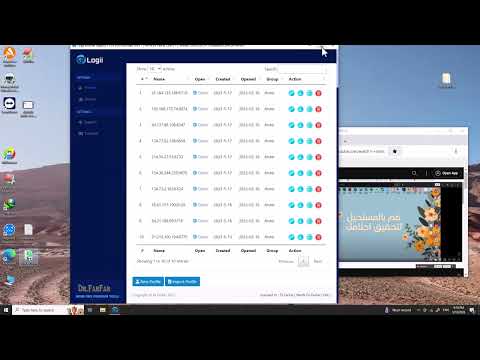
Quick answer: To update Multilogin: open the desktop app, accept the update prompt from the menu or settings panel, and install it outside peak campaign hours — early morning or weekend maintenance windows. Always export a profile backup before patching, and re-run a fingerprint check afterward: core browser updates can shift canvas hashes, which means live profiles may need re-baselining.
Updating Multilogin is a two-minute action with a fleet-wide blast radius if done carelessly: a bad patch during live campaigns can log out every profile at once, and core browser updates can shift the fingerprint baselines your aged accounts depend on. Here’s the routine that keeps updates boring. For removal instead of update, see how to uninstall Multilogin — and for account recovery, how to change your Multilogin password.

How to Update Multilogin
Open the desktop agent and look for the update prompt in the top menu or settings panel — Multilogin also pushes update notifications on launch. Install during a low-traffic window: early morning or weekend maintenance blocks, never mid-campaign. Timing matters more for Multilogin than most tools because its Mimic and Stealthfox engines ship core browser versions, and a core update changes what platforms see (how the engines work explains why).
Before You Patch: The Backup Ritual
Export a full profile backup before every update — cookies, extensions, and proxy assignments per client. Core browser updates can shift canvas hashes, breaking fingerprint baselines on live accounts; when that happens, the backup is what lets you restore a single profile without touching the fleet. Keep the rollback exports outside the app’s own storage so an update failure can’t take them with it.
Verify After the Update
| Check | Tool | Pass condition |
|---|---|---|
| Fingerprint stability | PixelScan / BrowserScan | Canvas/WebGL output matches pre-update baseline |
| Session persistence | Launch 2–3 key profiles | Sessions restore logged-in, no forced re-auth |
| Proxy routing | Leak checker per profile | IP, timezone, WebRTC still consistent |
Compare changelog notes with checker results after every update. Any canvas or WebGL delta in checker output means your fingerprints shifted and profiles may need re-baselining — better to catch that on a test profile than have a platform catch it on a client account. This verification habit also pairs with the setup baseline from the Multilogin setup guide.
When Updates Keep Breaking Profiles
An occasional rough patch is normal for any vendor shipping Chromium cores. But if update cycles break profiles repeatedly — fingerprint drift every release, sessions dropping fleet-wide — that’s a vendor stability problem, and it’s worth trialing RoxyBrowser during your next update window: its update cadence and rollback support differ, and the comparison costs you nothing but a week on the same proxies and domains.
Ready to try RoxyBrowser?
Try RoxyBrowser Free →
Related guides
Frequently Asked Questions
How do I update Multilogin?
Open the desktop app and accept the update prompt from the menu or settings panel. Install outside peak hours — early morning or weekends — with a profile backup taken first.
Should I back up profiles before updating?
Yes, every time. Core browser updates can shift canvas hashes and break fingerprint baselines on aged accounts — the backup is what makes a single-profile restore possible without touching the fleet.
How do I verify the update worked correctly?
Run PixelScan or BrowserScan on a test profile and compare against your pre-update baseline. Any canvas or WebGL delta means fingerprints shifted — re-baseline affected profiles before they log into live accounts.
What if updates keep breaking my profiles?
One rough patch is an incident; repeated breakage is a vendor stability problem. Trial RoxyBrowser alongside on identical proxies and domains before your next renewal decision.