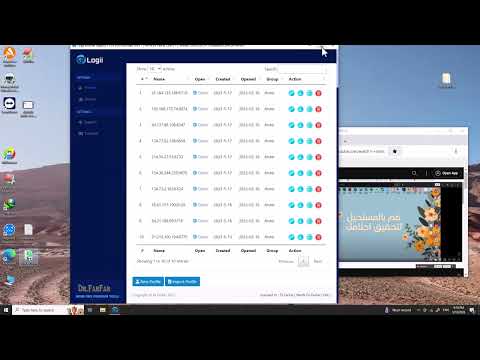
Quick answer: To use the Multilogin app: download the desktop client from multilogin.com, sign in, create a workspace, add a profile (selecting browser type and configuring the proxy), then click Launch to open an isolated browser window. Log into your target account in that window. Close it when done — the session state saves automatically. Name profiles by client, platform, and proxy city for easy navigation at scale.
Installing and Launching the Multilogin Desktop Client
Multilogin runs as a desktop application on Windows and Mac. Download it from the official Multilogin website (multilogin.com) — not from third-party download aggregators, where unofficial builds occasionally circulate. The application manages browser profiles locally while syncing workspace configuration to Multilogin’s servers, so an active internet connection is required to launch profiles. After installing and signing in with your account credentials, you land in the main dashboard showing your workspace profiles.
Step-by-Step: First Profile Setup
-
1
Create a new profile — click “New Profile” in the dashboard. You’ll name the profile and choose the browser core: Mimic (Chromium-based, same rendering engine as Chrome) or Stealthfox (Firefox-based). Choose Mimic for platforms where you need Chrome-specific behavior; Stealthfox for Firefox fingerprint personas.
-
2
Configure fingerprint settings — the app pre-populates a fingerprint configuration (OS, screen resolution, language, timezone, user-agent). Match the timezone to the geographic location of the proxy you’ll assign to this profile. A US proxy with a UK timezone is a detectable mismatch on sophisticated platforms.
-
3
Add a proxy — in the proxy section of profile settings, enter your proxy server details: host, port, username, password, and protocol (HTTP, HTTPS, or SOCKS5). Use the built-in connection test to confirm the proxy responds before saving. A profile launch with a broken proxy is worse than no proxy — the app may fall through to your real IP.
-
4
Launch and verify — click Launch. A dedicated browser window opens. Navigate to PixelScan.net or BrowserLeaks.com to confirm the fingerprint and IP read correctly before logging into any account. This verification step prevents the mistake of logging into a client account through a mismatched profile.
-
5
Log in and close — log into the target account, complete whatever actions the session requires, then close the browser window (not the Multilogin desktop app — just the profile window). Multilogin saves the session state automatically. The next person who launches this profile will be logged in where the last session left off.
Browser Type: Mimic vs Stealthfox — Which to Choose
| Factor | Mimic (Chromium) | Stealthfox (Firefox) |
|---|---|---|
| Rendering engine | Chromium / Blink | Firefox / Gecko |
| Best for | Ad platforms, marketplaces, social media | Platforms that check browser fingerprint diversity |
| Market share realism | More common — ~65% of web users use Chromium browsers | Less common but more distinctive fingerprint |
| Extension support | Chrome Web Store extensions | Firefox Add-ons |
Naming profiles generically — “Profile 1,” “Profile 2,” “New Profile.” At 30+ profiles, searching for a specific client account becomes a time sink and creates real risk of launching the wrong profile for an account. The naming convention that survives scale: [ClientCode]-[Platform]-[ProxyCity]. Example: “ACME-FB-NewYork” or “CLT2-AMZN-London.” Applies a label that remains legible when 150 profiles appear in the same panel. Teams that standardize this from profile 1 avoid the painful retroactive renaming exercise at profile 50.
Team Workspace Setup and Role Assignment
Multilogin’s team workspace model allows multiple operators to share and launch profiles under a single workspace. The workspace owner adds team members and assigns roles — Owner, Manager, or Operator — each with different access levels. Owners can create and delete profiles. Managers can edit profile settings. Operators can launch profiles but not modify their configurations.
For agencies: the practical workflow is to have one person (the account manager or team lead) own all profile configurations, and operators receive launch-only access. This prevents operators from accidentally modifying fingerprint settings or proxy assignments while working in a client profile. When a client relationship ends, archive the profile from the workspace rather than deleting it — profile history can be needed for audits. For the mobile side of that split, see can you use Multilogin on a phone.
If the Multilogin app’s per-seat licensing becomes the primary cost constraint as you scale, RoxyBrowser is worth a parallel trial on identical client domains — comparing both tools on the same platforms you actually manage gives you real survival data before an annual renewal decision.

Related guides
FAQ: How to Use Multilogin App
Does Multilogin require installing a browser separately?
No. Multilogin bundles its own browser cores (Mimic and Stealthfox) within the desktop application. You don’t install a separate browser — the Multilogin app manages everything. The browser windows that open when you launch a profile are controlled by Multilogin’s bundled engines, not by your system’s installed Chrome or Firefox. Keeping the Multilogin app updated is important because updates include the underlying browser core versions that canvas and WebGL hashes are built on.
Can I import extensions into Multilogin profiles?
Yes — for Mimic profiles, Chrome Web Store extensions can be installed inside a profile session like a regular Chrome browser. However, extensions persist within the profile across sessions (they’re part of the saved profile state), so extensions installed in one profile don’t appear in others. Exercise caution with extensions that request broad site access permissions — these carry the same risk in Multilogin profiles as they do in regular browsers. Only install extensions from verified, high-review sources.
Do profiles sync across different computers?
Workspace configuration (profile names, fingerprint settings, proxy configuration) syncs to Multilogin’s servers, so another team member on a different machine in the same workspace can launch the same profile with the same settings. Active session cookies (the logged-in state) also sync — so a session started on one machine can be resumed on another. This is the core feature that enables distributed teams to hand off client accounts between operators without logging out and back in.
When should I create a new profile vs reusing an existing one?
Create a new profile for each distinct account relationship: each separate client, each separate ad account, each separate marketplace seller identity. Reusing a profile that was previously used for a different account carries residual session data and behavioral history that can create link signals between the old account and the new one. The rule of thumb: one profile per account, never reassigned. When a client relationship ends, archive the profile — don’t repurpose it for a new client.